Bolt turned slides into web pages: 3D walkthroughs, live whiteboards, filterable charts — one link to present
- On July 16, 2026, Bolt.new open-sourced its AI slide tool Bolt Slides. The repo lives on GitHub (stackblitz/bolt-slides) under the MIT license — free to use and modify.
- It hands AI agents a ready-made set of building blocks that turns every slide back into a real, working web page — genuine layout, deliberate animation, any interaction you want.
- Four official demos: a real-estate 3D walkthrough with an adjustable mortgage calculator, a live whiteboard vote inside a quarterly-planning deck, and a filterable, sortable data dashboard.
- Every demo is a responsive web app — share it as a single link, and it still looks right on a phone.
- Two ways to start: one prompt inside Bolt for instant generation, or clone the open-source repo and plug it into Claude Code, Codex, or Cursor.
⚑Sourced from Bolt.new's official announcement thread and the open-source repo's README. The features, demo clips, and claims like "taste is built in" described here all come from Bolt's own release materials and have not been independently verified by a third party. The four demo clips were recorded officially and re-hosted on this site for playback within China.
Bolt open-sources its AI slide tool
On July 16, 2026, Bolt.new announced it was officially open-sourcing its AI slide tool, Bolt Slides. The repo lives on GitHub (stackblitz/bolt-slides) under the MIT license, free for anyone to use or modify.
Generating slides with AI hasn't been novel for a couple of years now. The real problem is that the output is often embarrassing to show anyone: generic, cookie-cutter layouts, slide after slide of bullet points — the kind of deck you'd wince at handing to a client. And even when it looks good, once exported it's still just a static image or a PDF. The audience can only stare at it; nothing responds to a touch.
The key move: turning slides from images back into web pages
Bolt Slides' approach is to hand AI agents a ready-made set of building blocks that turns each slide back into a real, working web page. Concretely, every slide is a React component — anything you can do on a web page, you can put on that slide: real layout, deliberately designed animation, any interaction at all.
Underneath, there's nothing mysterious about it: it's a classic paginated presentation engine, with a thumbnail sidebar, a grid overview, step-by-step content reveals, an annotation pen, and a presenter mode that syncs with the audience view. The difference is that each page's content is ordinary web code, so it adapts to any screen and can be shared with a single link. As the repo puts it: if you can build it for the web, you can present it.
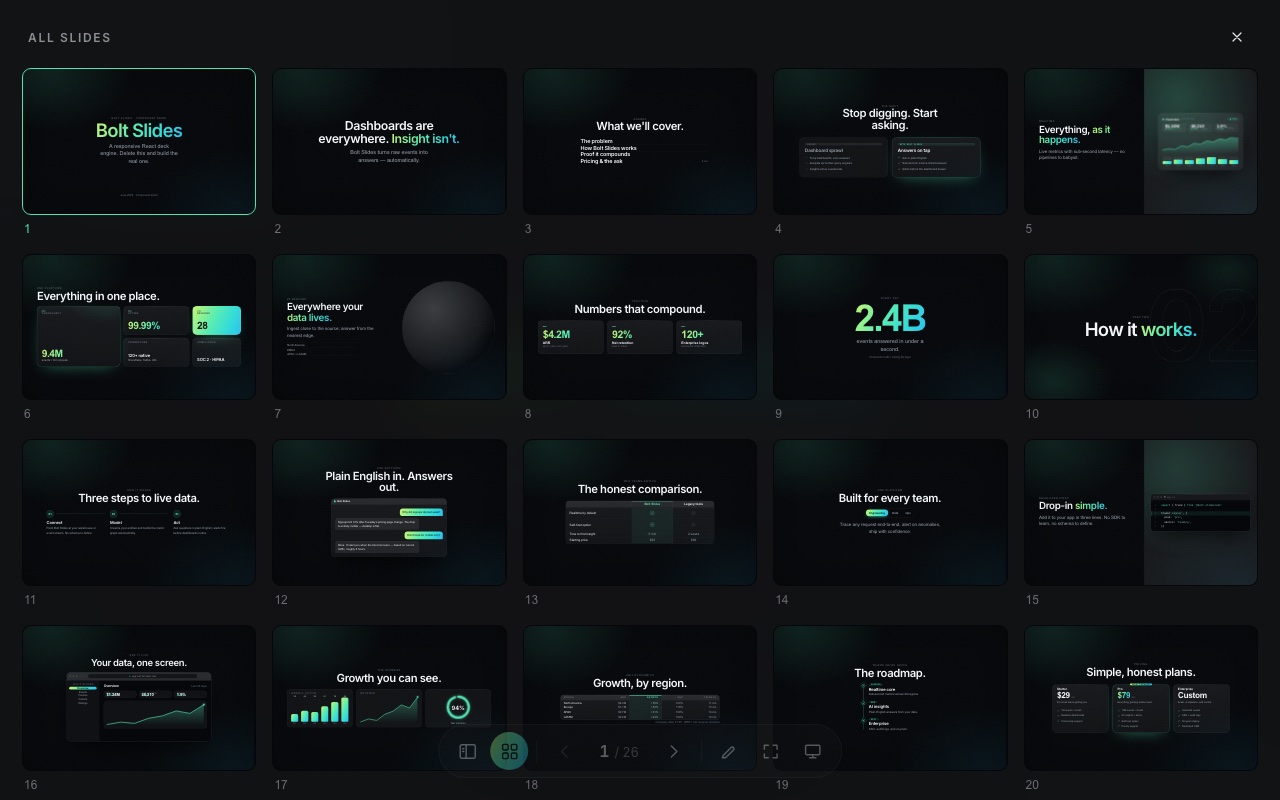
Color is designed to work out of the box too: every color, font, corner radius, and shadow lives in one style file's root variables. Change a single accent color and the entire deck — including the tool's own interface — reskins along with it. The repo also ships nine ready-made theme directions, from magazine-style to dark technical. The repo's docs call this "taste is built in."
When a slide can be operated, a presentation becomes an experience
"Interactive slides" is an abstract phrase that's hard to picture. The three scenarios in the official release are concrete, each with a real demo clip. Watch for the thread running through all three: the audience is no longer just listening to you read — they get to touch it themselves.
Pitching clients and investors: let them try it, not just hear about it
Pitching a client or an investor? The presentation can actually come alive. A real-estate agent's deck can embed a full 3D walkthrough of the house; flip to the next slide and there's a mortgage calculator the buyer can adjust themselves — change the price, the down payment, the interest rate, and the monthly payment updates live. Instead of describing it out loud, let them experience it firsthand.
Internal planning: turn the audience into collaborators
Internal planning and brainstorming meetings are where attention drifts fastest. Bolt Slides lets you drop a live whiteboard directly into a Q1 planning deck — the whole team can stick notes, sketch, and vote on the spot without ever leaving the presentation. The audience goes from spectators to co-authors.
Board meetings and quarterly reports: let people dig into the numbers themselves
Board updates, client reports, quarterly results — instead of reading numbers off a slide, let people explore: filter a table, sort a chart, click into a key metric to drill down. And because every presentation is itself a responsive web app, it's just an ordinary link that looks right on any screen, phones included.
Cloning the repo: how this thing is actually built
Now that it's open source, the most interesting part is pulling it apart to see how it pulls off "every page is a web page, and AI can build it from one prompt." Once you dig in, the foundation turns out to be far plainer than you'd expect.
The whole engine is hand-written, with just three dependencies
Start with the foundation. The entire deck engine, interface included, comes to roughly 1,260 lines of code, and it runs on just three dependencies: React, React DOM, and framer-motion for animation. No Slidev, no reveal.js. Even the flashy stuff — like a draggable 3D globe — is hand-written on the browser's native Canvas, with zero graphics libraries pulled in.
That also explains the line it keeps repeating — "if you can build it for the web, you can present it" — because underneath, it's really just an ordinary React app, with no dedicated slide-framework layer standing between you and the page.
The key division of labor: the engine is frozen, the content is rewritten from scratch every time
Why does one prompt return a finished deck that's both good-looking and usable? The answer is in the instruction manual the repo writes for AI agents (.bolt/skills/slides/SKILL.md). It splits the job into two halves and keeps insisting they must never mix:
src/deck/), already written and tuned — the manual's first hard rule is "don't touch it, never regenerate it." The other half is content (that 26-slide sample deck is just a one-off proof that it runs) — it has to be rewritten from scratch every time to match the user's real subject, brand, and data, with every sample deleted and no fake company names or fake numbers left behind.In other words, the AI agent never has to cobble together a slide engine from scratch each time — that's precisely the part most prone to bugs and ugliness. It only has to fill content into a skeleton that's already been polished. The hard part is a fixed asset; the AI only does the assembly it's good at. That's where "the finished deck still looks good" comes from.
Step-by-step builds: a few clicks per slide, run by a small counter
The most common interaction in these decks is "click and a bullet point appears." In code, that's just wrapping whatever should appear step by step inside a Build tag, labeled with which step it appears on:
<Slide center>
  <h2>Three things changed</h2>
  <Build at={1}>First, the data got bigger</Build>
  <Build at={2}>Then, the tools got faster</Build>
  <Build at={3}>Now, anyone can ship</Build>
</Slide>
In the example above, three bullet points are each wrapped in a Build, labeled steps 1, 2, and 3. The engine tracks two numbers per slide: how many clicks it's had so far, and how many steps that slide has in total. Press the arrow key, and if there's a step not yet revealed, it reveals one more; only once every step has played does it advance to the next slide. Going backward works the same way — stepping back to a previous slide restores it to the "fully revealed" state, so flipping back and forth never gets confused. The whole logic is just a small counter. No magic involved.
Presenter mode, share links, thumbnails — all free wins from being a web page
Precisely because a slide is just a web page, a lot of features borrow directly from what browsers already do natively:
- Presenter mode Press P to open a new tab as the speaker view (with a timer, a next-slide preview, and editable notes). The two tabs stay in sync via the browser's built-in cross-tab broadcast (BroadcastChannel, a mechanism for same-origin pages to message each other): flip a page in the speaker tab and the audience tab follows. There's even a small "echo guard" switch in the code to stop the two pages from bouncing off each other.
- Sharing a specific slide The
#7at the end of the address bar means slide 7. It rewrites that number live as you flip pages, so you can send someone a link straight to a specific slide. - Thumbnails and grid overview Every small preview in the sidebar and grid isn't a screenshot. It's the actual slide's component, re-rendered at a smaller scale, so the thumbnail always matches the real content — edit the content and the thumbnail updates instantly.
- Notes Whatever you type into the speaker view's notes is saved locally in your own browser, and it's still there next time you open the deck.
The cleverest detail: annotations "follow the content," staying accurate even on a different screen
There's an easy-to-miss detail in the release clip: circle a number on a laptop, then open the same presentation on a phone, and that circle still lands exactly on the same number — even though the phone's layout has already reflowed and the number has moved. A plain pen annotation can't pull this off; it records screen coordinates, which go stale the instant the screen changes. Here's how it gets around that:
Once you finish a stroke, it first finds whichever content block sits at the stroke's center and records it as a path — "the Nth child from this page's root, then the Mth child of that" (say 0.2.1) — then converts every point of the stroke into a position expressed as a percentage relative to that block. Because the page structure (who's whose Nth child) is identical on any screen for the same presentation — CSS has only reflowed it — that path finds the same block on a phone too, and once the percentage coordinates are applied, the circle lands back on that number. Strokes drawn on empty background instead anchor to the whole page and scale with the screen.
How "taste is built in" actually works: written as hard rules the AI must obey
Back to that manual fed to the AI. Its most impressive move is breaking down "don't make it look like a PowerPoint template" into hard rules an AI can actually follow:
- Every flashy layout has an entry requirement The 3D globe is only allowed when the story is genuinely about geography (users or revenue by country), and its markers have to be real coordinates; a giant-number slide is capped at one per deck and must have a verifiable source; a pricing table only appears when this particular presentation is actually about discussing price. The manual's own words: if you can't explain in one sentence why this layout serves this presentation, delete it.
- The sample deck exists to be deleted Those 26 slides show off every component only because it's a component showcase; a real presentation must never copy it — it has to be rewritten around the user's actual content.
- Zero new dependencies Adding your own component is fine, but only with plain React, CSS, and SVG — no new libraries allowed. Even theming is limited to changing the values of that one set of color and font variables; change a single accent color and the whole deck, interface included, reskins with it.
Taken together, these rules are what "taste is built in" actually means: the taste here doesn't come from a flash of inspiration in the model. It comes from other people's pitfalls — layouts piled on for no reason, misaligned centering, phone overflow — written down in advance as a checklist the AI has to follow. So what Bolt has really open-sourced isn't so much a slide tool as this entire pre-assembled body of judgment.
Two ways in: instant generation, or plug into your own agent
Bolt offers two ways to get started. The first is the one-click version: open Bolt, type a single prompt (say, "build me a presentation pitching this product to this type of client"), and with zero configuration it hands back a finished app ready to present. The repo bundles a skill document written for the agent that teaches it how to set a theme, lay out slides, and write the deck — it even sets the browser tab's title and icon for you.
The second is the open-source version: clone the repo locally and plug it into whichever agent you already use — Claude Code, Codex, Cursor, any of them. It boots up with a 26-slide sample deck that walks through every component; delete the sample slides and write your own instead. Each slide in the code is just a child element of Deck — assemble it from ready-made components, or write plain JSX directly. Want a piece of content to only reveal on a click? Just wrap it in Build; the arrow keys handle both forward and back.
The component library used to assemble slides splits into five categories, all responsive to phones:
- Structure Cover slides, tables of contents, section dividers, columns, bento grids
- Data Bar / line / donut charts, tables, big numbers, counting animations, visual dashboards
- Narrative Quotes, comparisons, timelines, steps, conversations
- Product Code windows, browser frames, pricing, team slides
- Flourishes 3D globe, tilt cards, spotlight cards, marquees, accordions, tabs
git clone https://github.com/stackblitz/bolt-slides
cd bolt-slides
npm install
npm run dev        # 打开一份 26 页示例 deck,改 src/App.tsx 写你自己的

# 或者交给 Agent 一句话:
# 帮我做一套把「你的产品」讲给「你的听众」的演示 deck
AI slides: from an image locked at export → back to a web page you can click, filter, and play with
Bolt.new open-sourced Bolt Slides, turning every slide back into a working web page — one page, with a diagram, explaining how it pulls that off.
↓ Read it in one page · includes an animated diagram
Using AI to make slides means giving it a topic and letting it lay out a whole presentation for you. Convenient, sure — but it has one old problem it's never shaken.
✘ Can't: Often produces a templated wall of bullet points; worse, once exported it's just a static image or PDF — the audience can only stare at it, nothing responds to a touch
Why: a traditional slide is, at bottom, just a "picture" — charts are pre-rendered screenshots, numbers can't be changed, let alone clicked or filtered
On July 16, 2026, Bolt.new open-sourced its AI slide tool Bolt Slides (MIT license — meaning free to use and modify however you like). The one key thing it does: turn slides from "an exported image" back into "a working web page." Every slide is really just a piece of web code.
But here's the question: if every slide is a hand-written web page, what makes the AI capable of building a good-looking, interactive finished product from one sentence instead of a pile of ugly junk? The answer is in the diagram below.
The trick is division of labor: the hardest, easiest-to-botch part is written and locked down in advance; the AI only does the fill-in-the-blank work it's good at.
For an ordinary person, the most concrete change is this: building a presentation you can actually play with used to mean writing a whole program yourself — now Bolt just hands you that program for free.
+ 27 blocks, all hand-written
this calculator budge?
a dead image
a working web page
Calculators respond?
I have to write myself?
fills blanks
dropped into a ready skeleton
- × Don't rebuild the engine (easiest way to make it ugly)
- × Delete all 26 sample slides
- × No new libraries, period
runs on download