Linear ships Loops: write one plain-language instruction, and anyone can run loop engineering
Available on Business and Enterprise plans, billed per run — $0.07 to $0.2 a pop.
- Loop engineering caught on among developers this June, but it's stayed a developer thing. The repetitive work product teams still babysit — engineers reading through bug reports one by one, PMs notifying teams when scope shifts, marketing adjusting launch schedules — still needs a human.
- Linear shipped Loops on July 20: describe a task in plain language, pick a schedule or event trigger, and Linear Agent keeps running that task across your whole workspace.
- Each run, it re-reads the instructions and decides what to do this time, pulling from issues (Linear's ticket items), projects, and docs, plus any connected codebases, attached external tools, and the loop's own past runs.
- Permissions are a row of individual toggles — web search, reading the codebase, starting a coding session to write code, posting into externally synced threads — you flip each one on separately. Turn on web search and workspace content can go out to external services; issues created outside Linear, like from a Slack message or an email, don't trigger a loop by default.
- It's billed per run: a run without a coding session costs $0.07 to $0.2; once it decides to touch code, a coding session to fix a small bug runs $3 to $5. Available on Business and Enterprise plans, with a promotional $20-per-seat credit thrown in through August 20.
Linear ships Loops
Linear launched Loops on July 20, letting Linear Agent — Linear's own AI that can actually take action inside your workspace — run a task repeatedly on a schedule or in response to events.
Until now, only developers were building these self-running loops
Starting this June, a practice caught on among developers: build a self-running loop that keeps nudging an AI to work, instead of prompting it one request at a time. It has a name — loop engineering. In his June essay, Addy Osmani broke a loop down into five components, plus memory.
All six pieces live inside coding tools, and the people using them are mostly developers. Loops changes the target — it plugs into the repetitive operational work product teams do every day.
- Scan yesterday's failed builds, new issues, and recent commits on a schedule
- Flag what's worth doing, send one agent to fix it and another to review
- Connectors open pull requests, update tickets, and post to channels on its behalf
- Engineers still read incoming bug reports one by one, then go dig into what's actually happening
- PMs still have to notify affected teams whenever scope shifts
- Marketing still adjusts the launch schedule whenever target dates move
The process behind all three items on the right is clear enough on its own — the bottleneck is that someone has to watch for the incoming change, make a judgment call, and then act. So how does Loops take over that kind of work? Start with what it actually looks like.
What pieces make up a loop
Building a loop takes two steps: describe the task in plain language, then choose whether it runs on a schedule or wakes up on an event. Zoom in, and a loop is really made of four pieces.
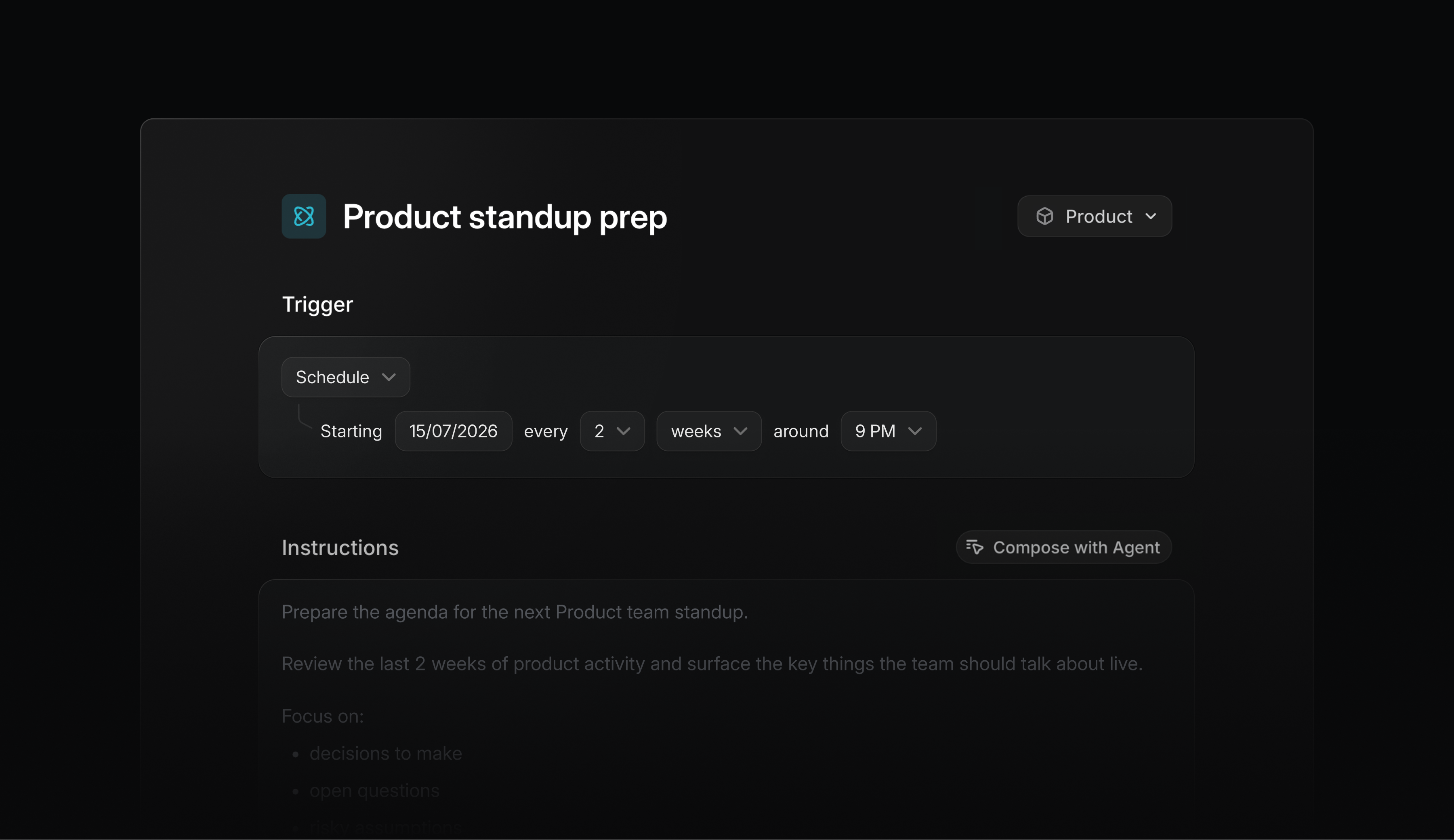
Prepare the agenda for the next Product team standup.

Review the last 2 weeks of product activity and surface the key things the team should talk about live.

Focus on:
- decisions to make
- open questions
- risky assumptions
A loop can be assigned to a single team, a group of teams, or the whole workspace. Anyone with access can view its instructions, see how it's configured, and look back through what happened on every run. Changes save as a draft first and only take effect once you hit Publish; every published version sticks around, so you can roll back to any earlier one at any time. One exception: a removed tool can't be restored — you'll have to re-authorize it from scratch.
What actually happens during a single run
On every trigger, Linear Agent re-reads the loop's instructions and decides for itself what to do this time. The context it can draw on includes Linear issues, projects, and docs; connected codebases; attached MCP tools; and the loop's own past runs. That's what lets it handle exceptions, ask first when information is incomplete, and pick a path when there are several options.
The official docs walk through a fairly complete example: a workspace called RideShare, and a loop called Bug investigation. Start with its instructions.
When an issue enters Triage, run only if it either has the Bug label or uses the bug report template.

Review the issue description, labels, comments, attachments, linked issues, related customer requests, and recent relevant issues across the workspace.

First, determine whether there is enough information to continue triage. The minimum needed is:
- expected behavior
- actual behavior
- reproduction steps
- device and OS information

If materially important information is missing, leave a short comment asking the user for the missing information.

If enough information is present, assess:
- severity as critical, high, medium, or low, with a short justification
- regression risk as likely, possible, or unclear
- duplicate risk as likely, possible, or none found
- the most likely team
- the most likely owner
This instruction is worth a closer look, because it demonstrates three techniques for writing loop instructions. The first is a front gate: the opening line — "run only if it carries the Bug label or uses the bug template" — shuts out issues that aren't its business. The second is locking outputs to a fixed set of options: severity can only be critical, high, medium, or low; regression risk can only be likely, possible, or unclear. No room for improvising, which is exactly what lets downstream processes consume the result directly. The third is refusing to guess when information is thin: it spells out the minimum four things it needs up front, and asks in the comments when they're missing, rather than inventing a severity rating out of thin air.
Now look at what one actual run produced. At 11:04 pm on July 9, it worked for 3 minutes. On RIDE-10663 (trip history won't load after reconnecting from airplane mode), it posted a triage summary, linked it to RIDE-10639, and updated the team, owner, priority, and effort estimate based on its assessment. The two issues share an identical title — a suspected duplicate. Then it went a step further: it tested the existing fix against the iPhone 17-plus-iOS 27 reconnection path described in the report, and concluded the fix looked sound and needed no code changes — just one more build and one more real-device airplane-mode repro before merging.

There's a detail in this screenshot that's easy to miss: this loop is event-triggered, so it fires quite often. On July 9 alone, the screenshot shows 16 runs, stretching from 5:49 pm to 11:12 pm. Each run leaves its own separate record, so you can go back and check exactly what it read and what it did on any given pass. That frequency comes up again later, because Loops charges by the run.
How much access you can hand it
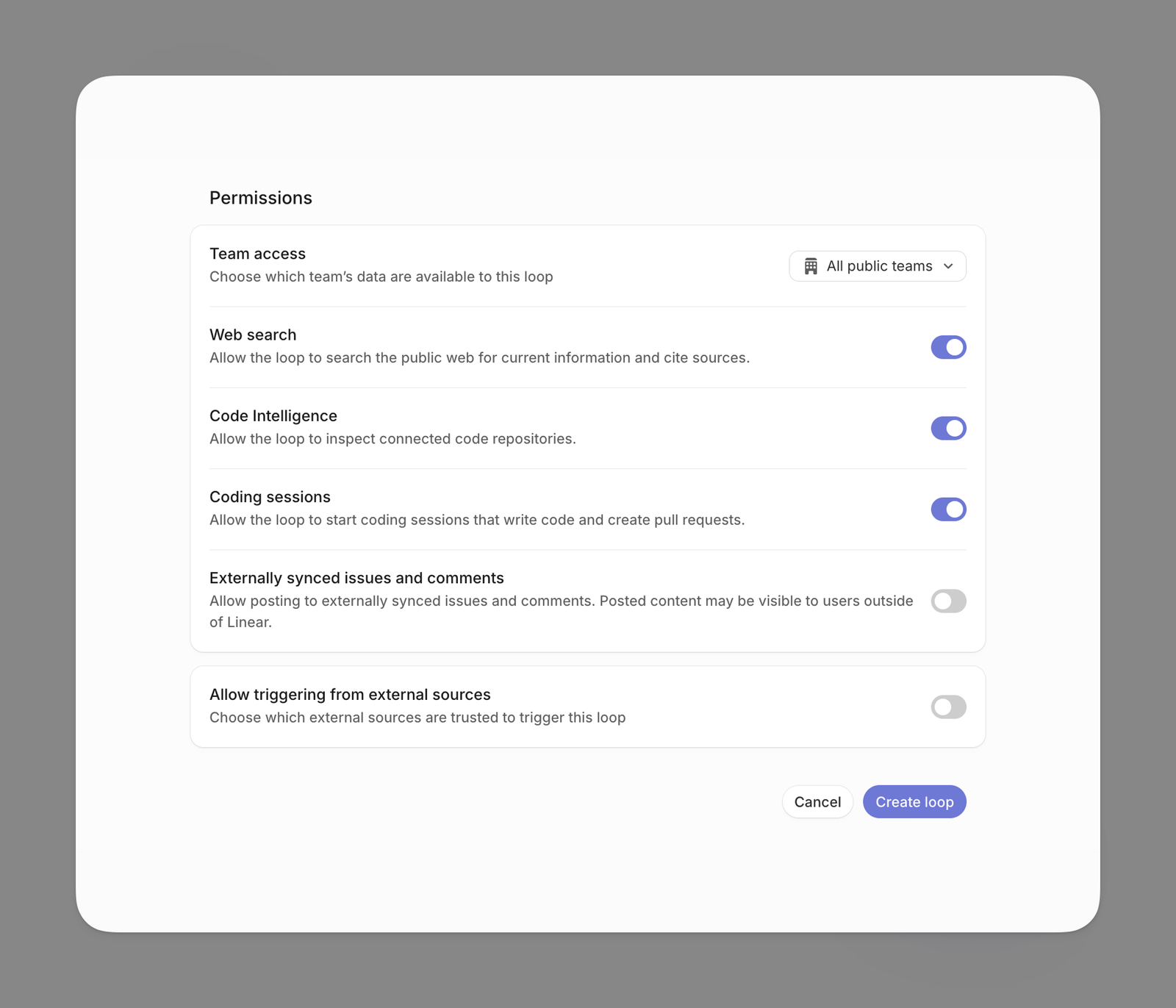
This is an agent running unsupervised inside a company's workspace, so the row of permission toggles decides two things: how much it can touch, and whether it can send what it finds out. Turn each one on individually when building a loop, and leave off whatever you don't need.
Which teams' data it can read and write. Workspace-level loops, and loops living in a public team, can access every public team by default; a loop in a private team can only access that team. Any loop with access to all public teams can also reach workspace-level objects like Initiatives and Customers.
Once on, it can look up any website — useful for things like tracking what competitors have shipped or digging through the docs of a connected service.
Turning this on means allowing workspace content to be sent to external services. Skip it for any loop that touches sensitive data.
Linear's own code comprehension capability. Once on, a loop can search through codebases connected to the workspace — it's what powers root-cause digging and answering code-related questions.
Once on, it can spin up a coding session directly and, once done, open a draft pull request for a human to review. Only loops actually handing off implementation work need this.
Once on, it can write into issues or comment threads that are two-way synced with external apps.
These threads can be visible to people outside the workspace. For example, if GitHub sync is turned on for a public repo, it can post comments straight into that repo's GitHub Issues.
Issues can be created from outside Linear — a Slack message, an email sent to a designated address. For security reasons, these don't trigger a loop by default. To let one trigger a loop, you have to explicitly turn on that source for that specific loop; which external sources are even allowed is set by the workspace owner in security settings.
With this off, a single run can only write to the issue that triggered it. With it on, it can write to any issue within its team-access scope.
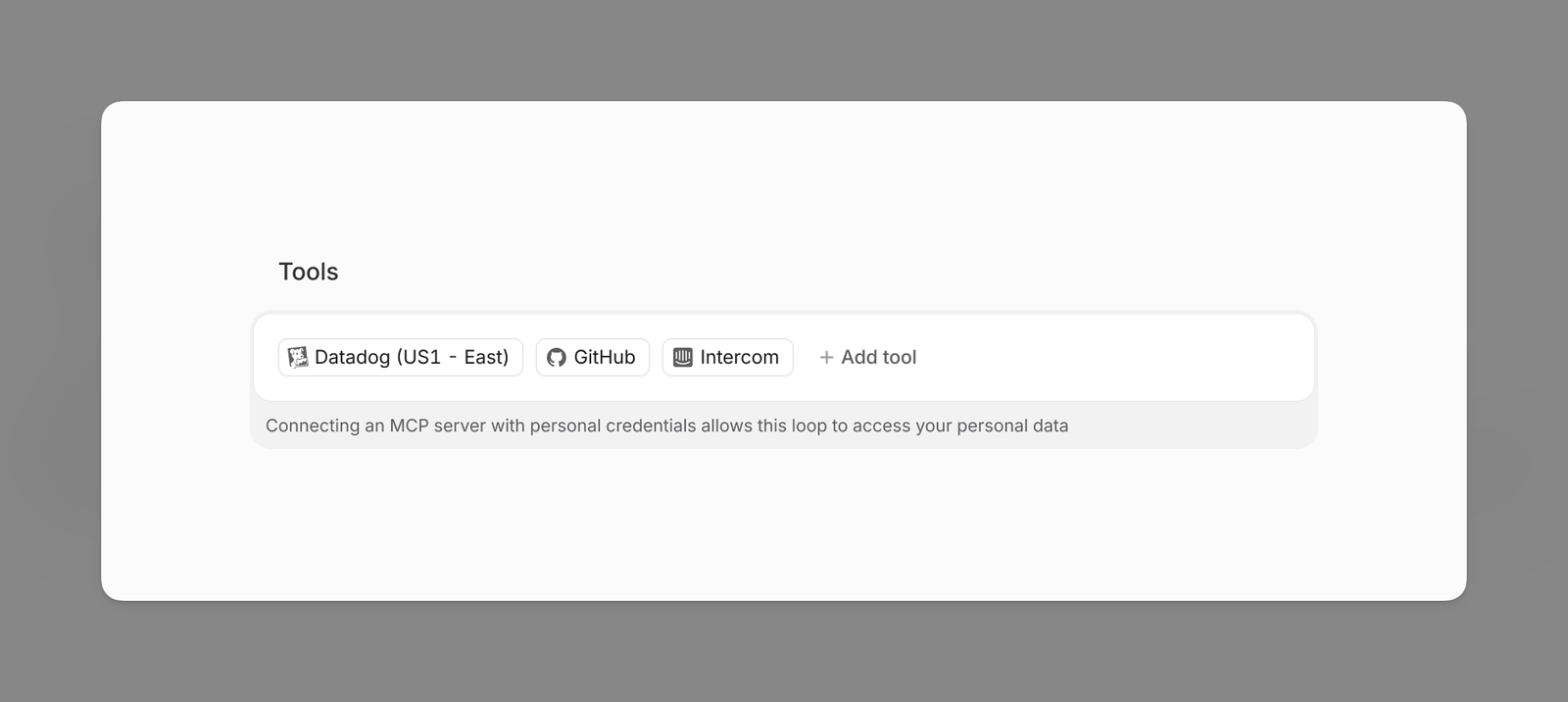
Tools are another point of access, but a narrower one than the permission toggles. Attaching a tool to a loop authorizes that loop to act inside that service; how far it can go is the intersection of two boundaries — what the integration itself is configured to allow, and how wide the loop's own data scope is. Every tool also needs workspace approval before it can be used at all — the workspace admin maintains an allowlist in security settings.
What teams are using it for right now
The bug-triage loop from the last section is the first use case, and won't be repeated here. Beyond that, the launch page and official docs list a few more, four of which are ready-made templates on the docs page — one click on "Build this loop" and you have your own.
Once a new feature request is created, the loop decides whether it needs separate iOS, Android, and Web work, and if so, creates issues for each platform and assigns them to the right teams.
At the end of each day, the loop checks running projects and Initiatives (a planning unit a level above projects) against a central launch plan. If it finds the timeline or scope has shifted, it updates the doc and leaves a note explaining why.
Once an issue tagged incident is marked done, it runs a root-cause analysis and creates new issues for whatever needs following up.
Once an issue is closed, it reads the PR (pull request) that closed it and drafts a customer-facing note for support to use.
When an issue enters this team's triage queue, investigate its likely root cause with Code Intelligence. If you think you can fix it, start a coding session.

Every Monday afternoon, review projects that had their first update in the last week or were mentioned as newly kicked off in @Weekly sync document. Send a Slack message to the #product-marketing channel so they're aware of what's coming.

When an issue is created in team Mobile, create separate issues for the iOS and Android teams, if relevant.
What a single Loops run actually costs
Loops is available on Business and Enterprise plans. Starting July 20, every run draws from the workspace's AI credits. That pool isn't bundled into the plan — an admin has to top it up separately — and not every AI feature draws from it either; only coding sessions and Loops do, everything else AI-related is covered by the plan. It charges by actual usage, not by seat.
Put this price list next to the number from the last section, and the actual cost of an event-triggered loop comes into focus. That bug-triage loop got woken up 16 times on July 9 alone — at $1.1 to $3.2 a day if none of those runs open a coding session. But its instructions explicitly say to start a coding session and fix things once the path is clear, and a single one of those runs costs $3 to $5. That's also why the instructions open with "run only on issues carrying the Bug label or using the bug template" — the front-end filter isn't just about accuracy, it's about not burning money.
A few more things worth knowing about the money side: using AI credits is opt-in — a workspace that never tops up simply can't use Loops or coding sessions, and is never charged; loops pause once credits hit zero or a promotional credit expires, unless an admin has turned on auto-refill or bought more, and only workspaces with auto-refill turned on get charged automatically; top-ups run through Stripe and are billed separately from the Linear subscription; and the billing page in settings shows a live breakdown of spend by feature and by person.
There are two ways to build a loop
The first path is to work it out in chat first, then turn it into a loop once you're happy with it: hit ⌘/Ctrl + J to open Linear Agent chat, dial in the result you want, keep pushing back until the format and content are right, then have Linear turn that exchange into a loop — it'll prompt you to fill in whatever fields are missing. The docs give a ready-made opener, for someone who runs a weekly Thursday project check-in:
Check the project Slack channel, open questions in the last update, and any issue threads that seem relevant. Add a new section in the Meetings project document with those details, using a format like [...]
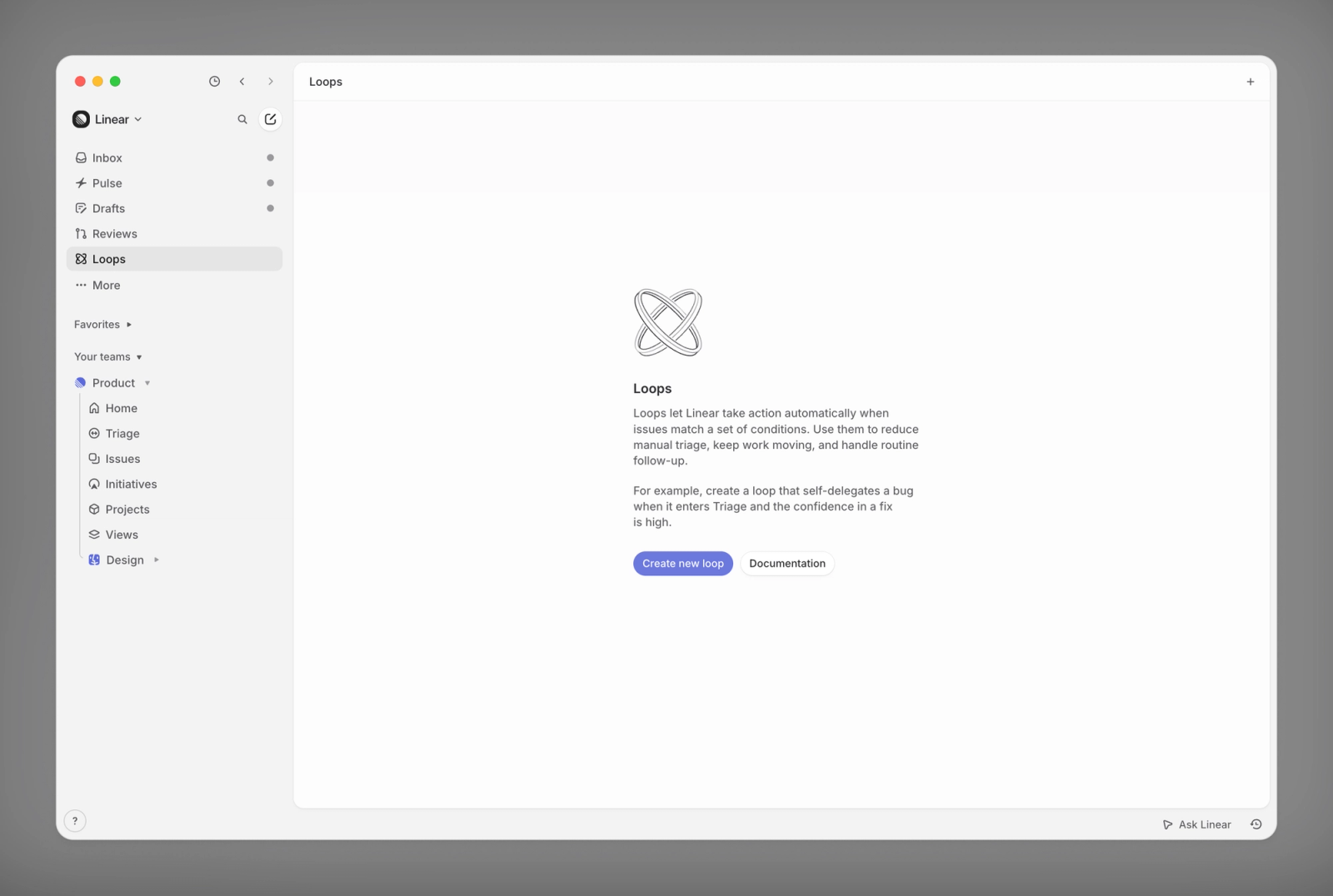
The second path is building it directly in the interface: click Loops under the workspace group in the sidebar for a workspace-level loop, or click into a team and choose its Loops tab for a team-level one. From there, pick a trigger, write the instructions, optionally attach tools, and step through scope and permissions.
Who can build and manage loops is also controllable: workspace owners manage workspace-level loops in security settings, and team owners manage their team's loops under the team's access and permissions.
Linear plans to add more trigger types and context sources down the line, along with governance controls for workspace and team admins.
Automated loops go from scripts developers quietly ran on the side to a feature anyone on a team workspace can build and inspect
Linear ships Loops: write a plain-language paragraph, and it keeps watching your bug queue for you — explained in one illustrated page.
↓ Read it in one page · includes an animated diagram
Linear is a tool teams use to log bugs, track tasks, and follow projects. Every to-do item inside it is called an issue (a ticket item). Starting this June, developers began building self-running loops that keep nudging AI to work without needing prompts typed one at a time — a practice called loop engineering. The problem: it's only ever lived inside developers' own coding tools.
✘ Product teams still have to babysit it by hand: engineers read incoming bug reports one by one and dig into what's going on, PMs notify every affected team individually whenever scope shifts, marketing adjusts the launch schedule whenever target dates move
The process behind all three items on the right is clear enough on its own. The bottleneck: someone has to watch for the incoming change, make a call, and then act.
Linear launched Loops on July 20. Write down, in plain language, something you want it to keep doing, choose whether it runs on a schedule or wakes up when an issue changes, and it keeps running across the whole workspace. The judgment call that used to require a human watching now lives in a paragraph of text.
- A human watched Triage (where new problems queue up before assignment)
- A human read the description, dug through attachments, and guessed whether it was a duplicate
- A human set the severity and updated the team and owner
The same approach handles other things too: auto-spinning off iOS, Android, and Web sub-tasks when a new request comes in; checking the project and launch-plan docs at the end of every day and updating them, with a note on why, when something's changed; running a root-cause analysis and filing follow-up tasks once an incident closes. Which raises a question — how does a paragraph like that actually turn into action every time it wakes up?
A loop carries four things: a trigger (a schedule, or an issue matching set conditions), a plain-language instruction, optional external tools, and a row of permission toggles. It isn't following a fixed script — every time it wakes up, it re-reads the paragraph you wrote, looks at the material in front of it, and decides for itself what to do this time. The diagram below walks through a real bug from the official docs, from a workspace called RideShare that Linear uses as its example.
Loops doesn't charge by seat — it charges by how often it's woken up. The cost mostly hinges on one thing: whether you let it touch code. Take that same triage loop from the docs — woken up 16 times on July 9 — and the daily cost between the two setups differs by an order of magnitude.
Requirements: a Business or Enterprise workspace; this credit pool isn't bundled into the plan — an admin has to top it up manually, at least $10 per top-up, and loops pause once the balance hits zero. All prices and credit figures above come from Linear's official billing documentation and can't be independently verified by a third party.
How late am I reading these?
it just needs someone watching
- × Read bug reports one by one
- × Scope shifts
notify every team - × Dates change
adjust the launch schedule
and it runs across the whole workspace.
No flowchart needed?
Triage, check if info
is sufficient. If not,
comment and ask.
If so, set severity
and find an owner."
every time it wakes up?
checks this bug's material,
and decides for itself.
it asks first
posted a summary, spotted a duplicate,
updated priority and owner
to touch code,
that's the price
only run on issues tagged Bug